Showing posts with label registry trick. Show all posts

Monday, 23 April 2012

How To Enable And Disable USB Port Of Your PC

In this post i will show you how to disable all the USB ports of your PC. After disabling this USB ports you cannot use any of the USB device om your PC. This trick will also help you to protect your PC data from an external threat.

As this trick is an Registry trick i recommend you to Backup your Registry, if you are unaware of how to backup the registry, please click here to learn "How To Backup The Registry"

Thus there is no problem trying this trick on your PC, as i have also shown the trick to enable the USB ports but don't forget to Backup the Registry.
Let's get this job done.
  • Click on START and then on RUN.
  • Type REGEDIT in the dialogue box and press Enter.
  • Now go to the following address,  HKEY_LOCAL_MACHINE\SYSTEM\CurrentControlSet\Services\USBSTOR.
  • Search for the "START" key in the right side column, and double click on it.
  • Change its Value Data from "3" to "4", now its done just close the registry and restart your PC.
  • Check that all your USB ports are disabled.
  • Now to re-enable the USB port just change the value data from "4" to "3" again
If you like this post don't forget to share it with your friends, and also Subscribe to our free email Subscription.
Continue Reading ...

Saturday, 3 March 2012

How To Hide The Shutdown Button In XP

Hide Shutdown button trick is based on registry, in this trick i am going to show you how to vanish the shutdown button in just seconds.
You can use this trick to fool or surprise anybody, you can bet your friends to shutdown your pc.

As i say this is an Registry trick, so i prefer you to backup the registry before you mess it up.
click here to learn How to Backup the registry

  • The first thing you have to do is you must log into the Administrative Rights.
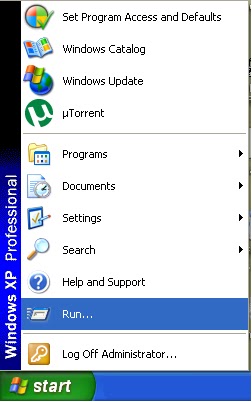
  • Now Click Start button click on "Run", Dialogue box will open.
  • Type "regedit" and press enter to open the Regedit editor.
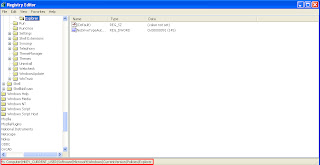
  • Now explore to the address : HKEY_CURRENT_USER\Software\Microsoft\Windows\CurrentVersion \Policies\Explorer.
 
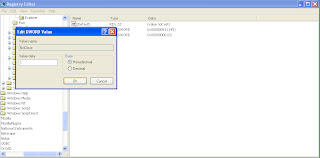
  • Now in the right side window, right click and create new DWORD value, and name it "NoClose" (Since the words are case sensitive, you must type as it is).
  • After renaming right click on it and click on modify, and assign value 1 to its value data box.
 
  • Now close the Registry and Restart the system, because after editing Registry you need to restart the system every time.
  • After restarting try to shutdown your pc, you will find that Shutdown button have been vanished.

  • I bet you can't shutdown without reading the solution.
  • Now again open the registry editor and repeat step 4.
  • Right click on "NoClose" and click on modify, now assign value 0 to its value data box.
  • But still in registry, for any changes to go into effect you must restart the system, so how can you restart now.
  • Well i still have the solution, the only way to shutdown your pc while trick is working.
  • Go to start menu and log off your pc, there will be "Turn Off" option on the lower left side corner.

So enjoy the trick and if you like it don't forget to share. And also Subscribe to our free email subscription.

If any doubt please let me know..
Continue Reading ...
x

Get Our Latest Posts Via Email - It's Free

Enter your email address:

Delivered by FeedBurner